> ## Documentation Index
> Fetch the complete documentation index at: https://agents.nanonets.com/docs/llms.txt
> Use this file to discover all available pages before exploring further.
# Organizations and workspaces
> Understand how companies, teams, agents, tasks, and access are organized.
Nanonets uses organizations and workspaces to keep teams, agents, and data organized.
Think of an organization as the company account. Think of a workspace as a place where a team does work.
## The hierarchy
```mermaid theme={null}
flowchart TD
Organization["Organization: your company"]
WorkspaceA["Workspace: Finance"]
WorkspaceB["Workspace: Operations"]
Agents["Agents, tasks, connectors, files"]
Organization --> WorkspaceA
Organization --> WorkspaceB
WorkspaceA --> Agents
```
## Organization
An organization is the top-level account.
It usually represents your company. It is where admins manage company-level settings such as users, workspaces, billing, and policies.
## Workspace
A workspace is where day-to-day work happens.
Workspaces contain:
* Agents
* Tasks
* Connected apps
* Files and documents
* API keys
* Workspace members and roles
For example, your company might have one workspace for Finance and another for Operations.
## Switch organizations or workspaces
Open the profile menu in the sidebar to switch between the organizations and workspaces you can access.
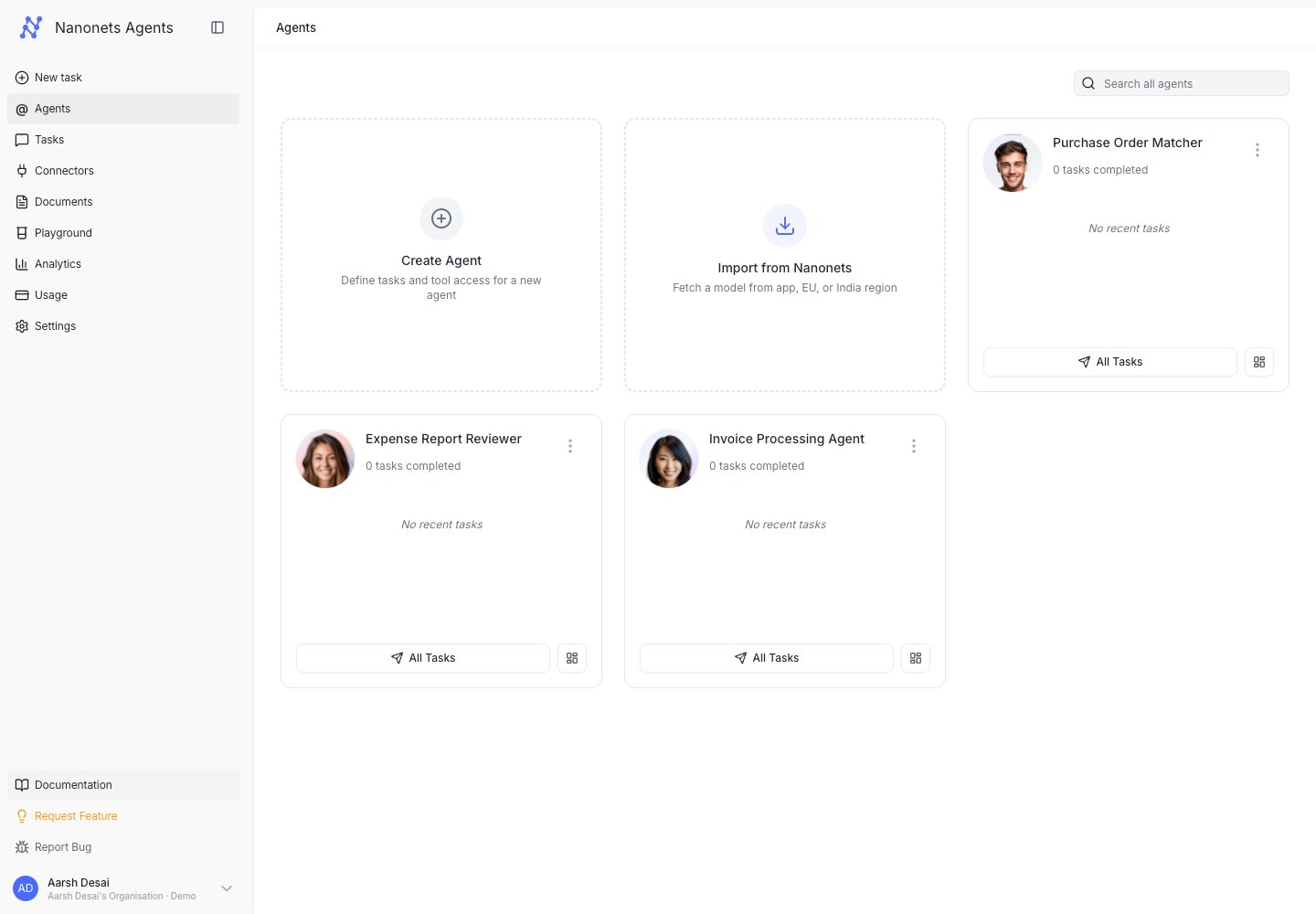 If you cannot find an agent or connector, check that you are in the right workspace.
## Manage workspaces
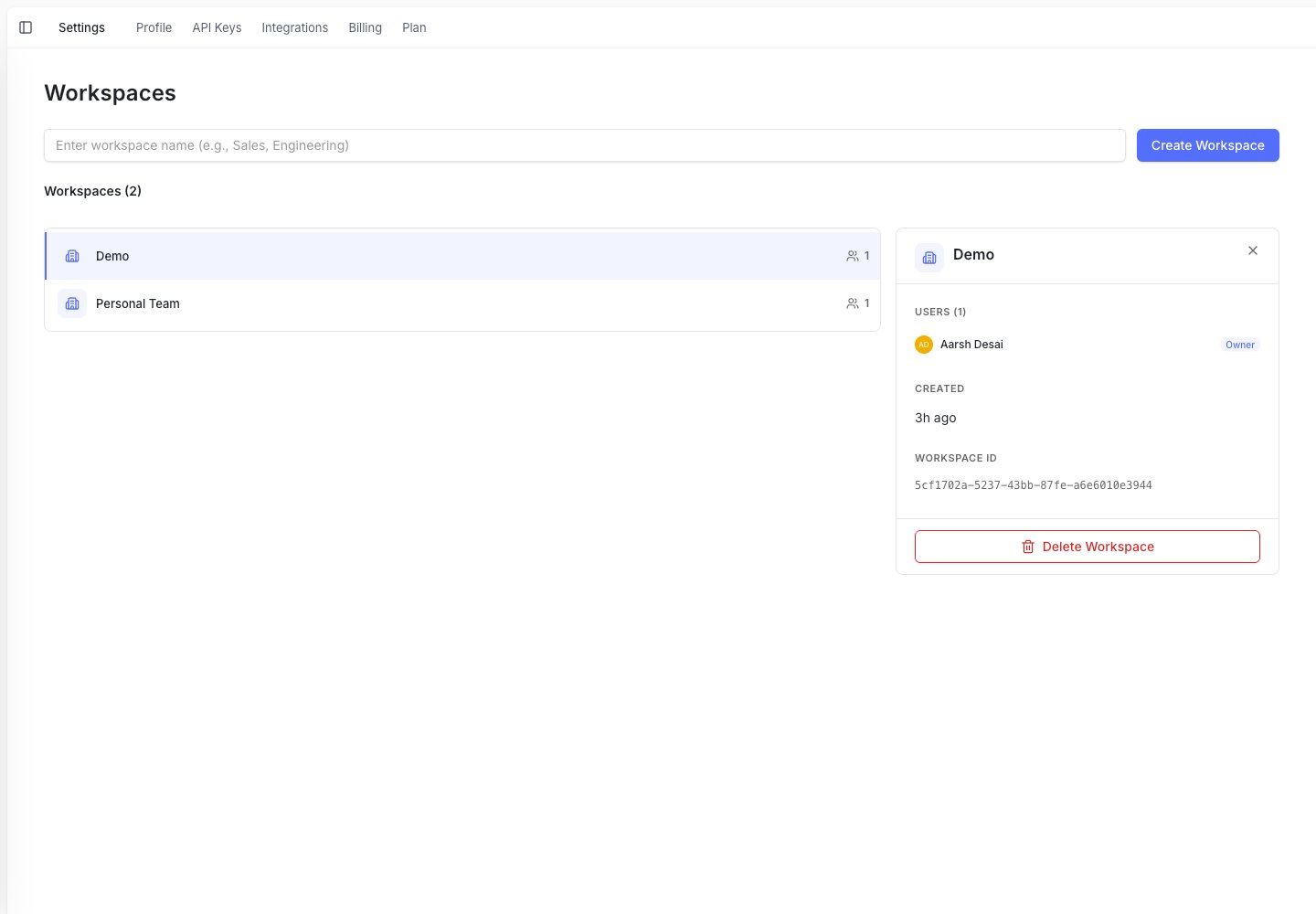
Admins can manage workspaces in **Settings → Workspaces**.
They can create workspaces, view members, add users, assign roles, and remove access.
If you cannot find an agent or connector, check that you are in the right workspace.
## Manage workspaces
Admins can manage workspaces in **Settings → Workspaces**.
They can create workspaces, view members, add users, assign roles, and remove access.
 ## What lives where
| Item | Usually belongs to |
| ---------------- | ------------------ |
| Billing and plan | Organization |
| Company users | Organization |
| Workspaces | Organization |
| Agents | Workspace |
| Tasks | Workspace |
| Connectors | Workspace |
| Files | Workspace |
| API keys | Workspace |
## Roles and access
Roles control what people can see and do.
Common examples:
* A workspace admin can manage agents, users, and settings in a workspace.
* A workspace member can run and review work in that workspace.
* An organization admin can manage company-level users and workspaces.
Access is workspace-based. A user may have access to one workspace but not another.
## What lives where
| Item | Usually belongs to |
| ---------------- | ------------------ |
| Billing and plan | Organization |
| Company users | Organization |
| Workspaces | Organization |
| Agents | Workspace |
| Tasks | Workspace |
| Connectors | Workspace |
| Files | Workspace |
| API keys | Workspace |
## Roles and access
Roles control what people can see and do.
Common examples:
* A workspace admin can manage agents, users, and settings in a workspace.
* A workspace member can run and review work in that workspace.
* An organization admin can manage company-level users and workspaces.
Access is workspace-based. A user may have access to one workspace but not another.