> ## Documentation Index
> Fetch the complete documentation index at: https://agents.nanonets.com/docs/llms.txt
> Use this file to discover all available pages before exploring further.
# Product guide overview
> A simple introduction to agents, tasks, tools, rules, integrations, and workspaces.
This guide is for business users who want to understand what Nanonets Agents can do.
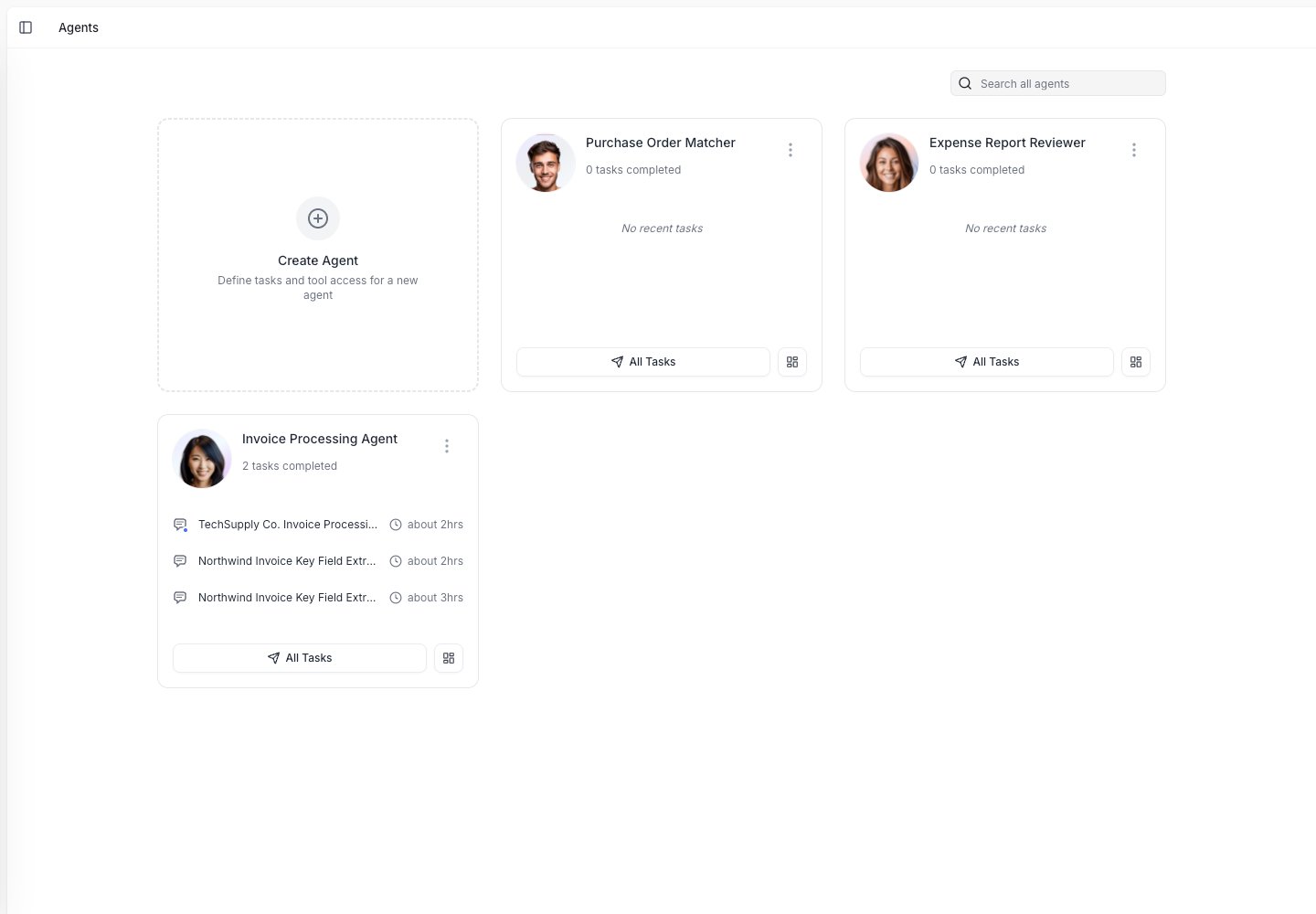
An agent is a digital teammate. You give it instructions, connect the tools it needs, and run it on real work like invoices, emails, forms, spreadsheets, and internal requests.
 ## The main ideas
An agent is the workflow you set up. It knows what job to do, which steps to follow, and which tools it can use.
A task is one run of an agent. For example, one invoice review or one customer email.
Tools let agents read documents, look up data, send emails, update spreadsheets, create files, and ask people for help.
Rules are what you teach the agent, by correcting a result, giving an instruction, or adding one yourself.
## What an agent can help with
Agents are best for work that follows a repeatable pattern.
They can help you:
* Read documents and pull out key data.
* Check data against a spreadsheet or business system.
* Ask a person when something is unclear.
* Create a file, report, draft email, or spreadsheet.
* Send results to tools like Google Sheets, Google Drive, Slack, email, or ERP systems.
Start with one clear process, such as "review invoices from vendors" or "extract data from onboarding forms." You can improve the agent over time.
## How the product fits together
Describe the work, add steps, and choose the tools it can use.
Give the agent a document, message, or request. The agent works through the steps.
Check the output. If the agent asks a question, answer it in the task.
Turn corrections and feedback into rules so future tasks get better.
## Where to go next
Learn how to create an agent and set up its basic workflow.
Turn corrections and feedback into rules so future tasks get better.
Connect email, spreadsheets, storage, and business systems.
Learn how your company, teams, and access controls are organized.
## The main ideas
An agent is the workflow you set up. It knows what job to do, which steps to follow, and which tools it can use.
A task is one run of an agent. For example, one invoice review or one customer email.
Tools let agents read documents, look up data, send emails, update spreadsheets, create files, and ask people for help.
Rules are what you teach the agent, by correcting a result, giving an instruction, or adding one yourself.
## What an agent can help with
Agents are best for work that follows a repeatable pattern.
They can help you:
* Read documents and pull out key data.
* Check data against a spreadsheet or business system.
* Ask a person when something is unclear.
* Create a file, report, draft email, or spreadsheet.
* Send results to tools like Google Sheets, Google Drive, Slack, email, or ERP systems.
Start with one clear process, such as "review invoices from vendors" or "extract data from onboarding forms." You can improve the agent over time.
## How the product fits together
Describe the work, add steps, and choose the tools it can use.
Give the agent a document, message, or request. The agent works through the steps.
Check the output. If the agent asks a question, answer it in the task.
Turn corrections and feedback into rules so future tasks get better.
## Where to go next
Learn how to create an agent and set up its basic workflow.
Turn corrections and feedback into rules so future tasks get better.
Connect email, spreadsheets, storage, and business systems.
Learn how your company, teams, and access controls are organized.