> ## Documentation Index
> Fetch the complete documentation index at: https://agents.nanonets.com/docs/llms.txt
> Use this file to discover all available pages before exploring further.
# Tools and capabilities
> Understand what agents can do with documents, spreadsheets, email, business systems, files, and people.
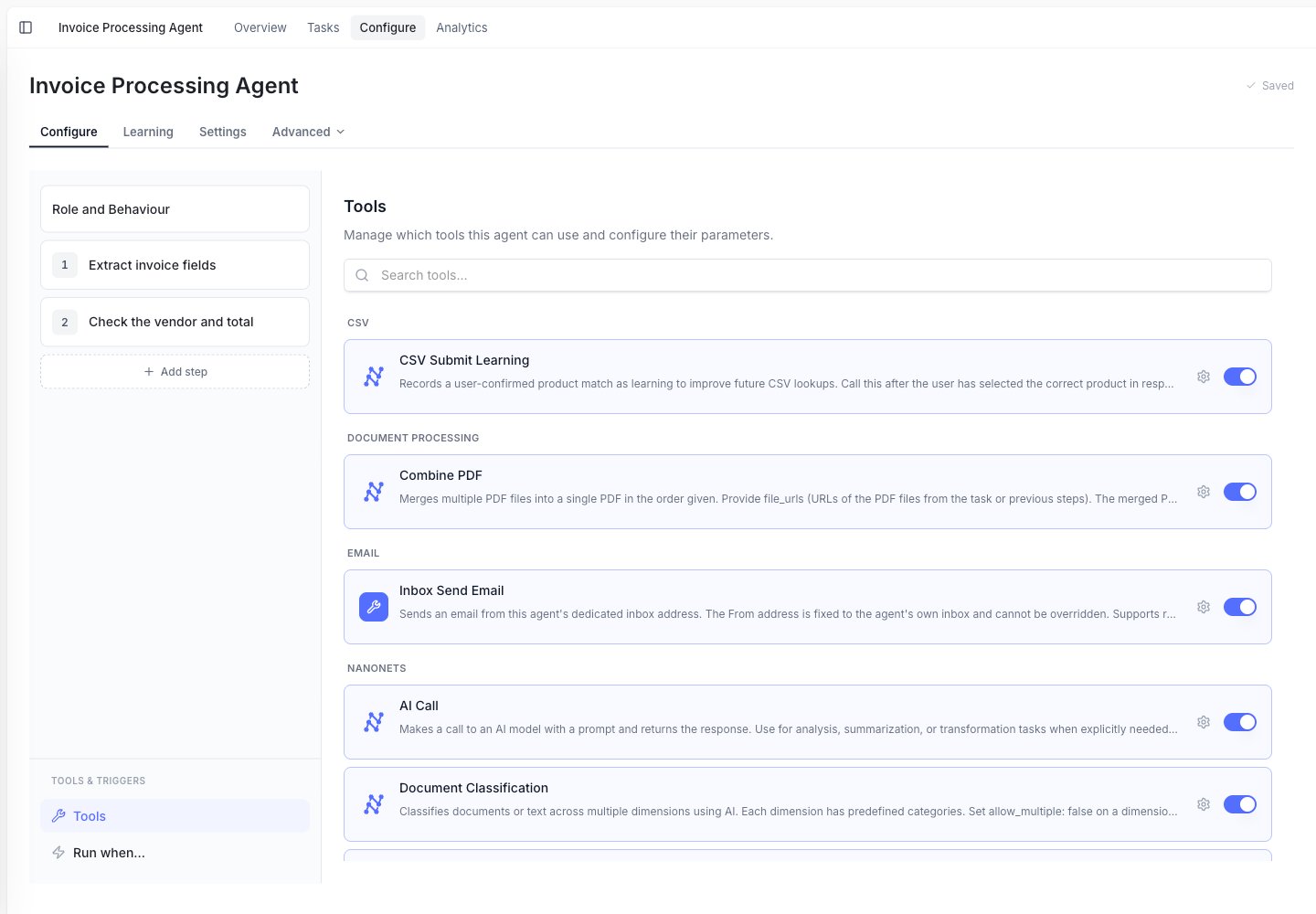
Tools are the actions an agent can take.
You choose which tools an agent can use. This keeps the agent focused on the work it is meant to do.
 ## Common things agents can do
Extract data from invoices, forms, contracts, spreadsheets, emails, and images.
Match vendors, customers, products, IDs, and prices from spreadsheets or connected systems.
Add rows to Google Sheets, upload files to Google Drive, or create records in business systems.
Generate PDFs, Excel files, Word documents, CSVs, HTML, and Markdown files.
Send emails, Slack messages, Teams messages, or SMS updates.
Pause the task and ask a user for missing information or approval.
## Extraction
Extraction means reading a file and turning important parts into clean data.
Examples:
* Pull invoice number, date, vendor, and total from a PDF.
* Read line items from a purchase order.
* Classify a document as an invoice, receipt, contract, or form.
* Convert tables in a PDF into an Excel file.
## Lookup and matching
Lookup means checking information against a trusted source.
Examples:
* Match "Northwind Traders Inc." to the correct vendor record.
* Find a product SKU from a product catalog spreadsheet.
* Check whether a customer already exists in your ERP.
* Search reference documents for policy details.
Lookup tools are useful when names are not written the same way every time. The agent can help match messy business data to clean records.
## Export and write-back
Export means sending the result somewhere useful.
Examples:
* Add extracted invoice data to Google Sheets.
* Upload a generated report to Google Drive.
* Create a vendor bill in NetSuite.
* Create or update records in SAP, Sage, or Microsoft Dynamics.
* Send a summary by email or Slack.
## Human review
Some work should not be fully automatic.
Agents can pause and ask a person when:
* A required field is missing.
* A total does not match.
* A payment needs approval.
* A rule says a human must review the result.
## Connected apps
Many tools need a connected app before they can work.
For example, a Google Sheets tool needs a Google Sheets connection. A Gmail tool needs a Gmail connection.
Learn more in [Integrations](/docs/guide/integrations).
## Common things agents can do
Extract data from invoices, forms, contracts, spreadsheets, emails, and images.
Match vendors, customers, products, IDs, and prices from spreadsheets or connected systems.
Add rows to Google Sheets, upload files to Google Drive, or create records in business systems.
Generate PDFs, Excel files, Word documents, CSVs, HTML, and Markdown files.
Send emails, Slack messages, Teams messages, or SMS updates.
Pause the task and ask a user for missing information or approval.
## Extraction
Extraction means reading a file and turning important parts into clean data.
Examples:
* Pull invoice number, date, vendor, and total from a PDF.
* Read line items from a purchase order.
* Classify a document as an invoice, receipt, contract, or form.
* Convert tables in a PDF into an Excel file.
## Lookup and matching
Lookup means checking information against a trusted source.
Examples:
* Match "Northwind Traders Inc." to the correct vendor record.
* Find a product SKU from a product catalog spreadsheet.
* Check whether a customer already exists in your ERP.
* Search reference documents for policy details.
Lookup tools are useful when names are not written the same way every time. The agent can help match messy business data to clean records.
## Export and write-back
Export means sending the result somewhere useful.
Examples:
* Add extracted invoice data to Google Sheets.
* Upload a generated report to Google Drive.
* Create a vendor bill in NetSuite.
* Create or update records in SAP, Sage, or Microsoft Dynamics.
* Send a summary by email or Slack.
## Human review
Some work should not be fully automatic.
Agents can pause and ask a person when:
* A required field is missing.
* A total does not match.
* A payment needs approval.
* A rule says a human must review the result.
## Connected apps
Many tools need a connected app before they can work.
For example, a Google Sheets tool needs a Google Sheets connection. A Gmail tool needs a Gmail connection.
Learn more in [Integrations](/docs/guide/integrations).